


Explore is PitGrowth's company directory. It holds more than 200,000 technology companies, corporates, investors and incubators. Use it to find suppliers, partners, competitors or companies to invest in, and to narrow a long list down to the few that fit.
Where to Find Explore
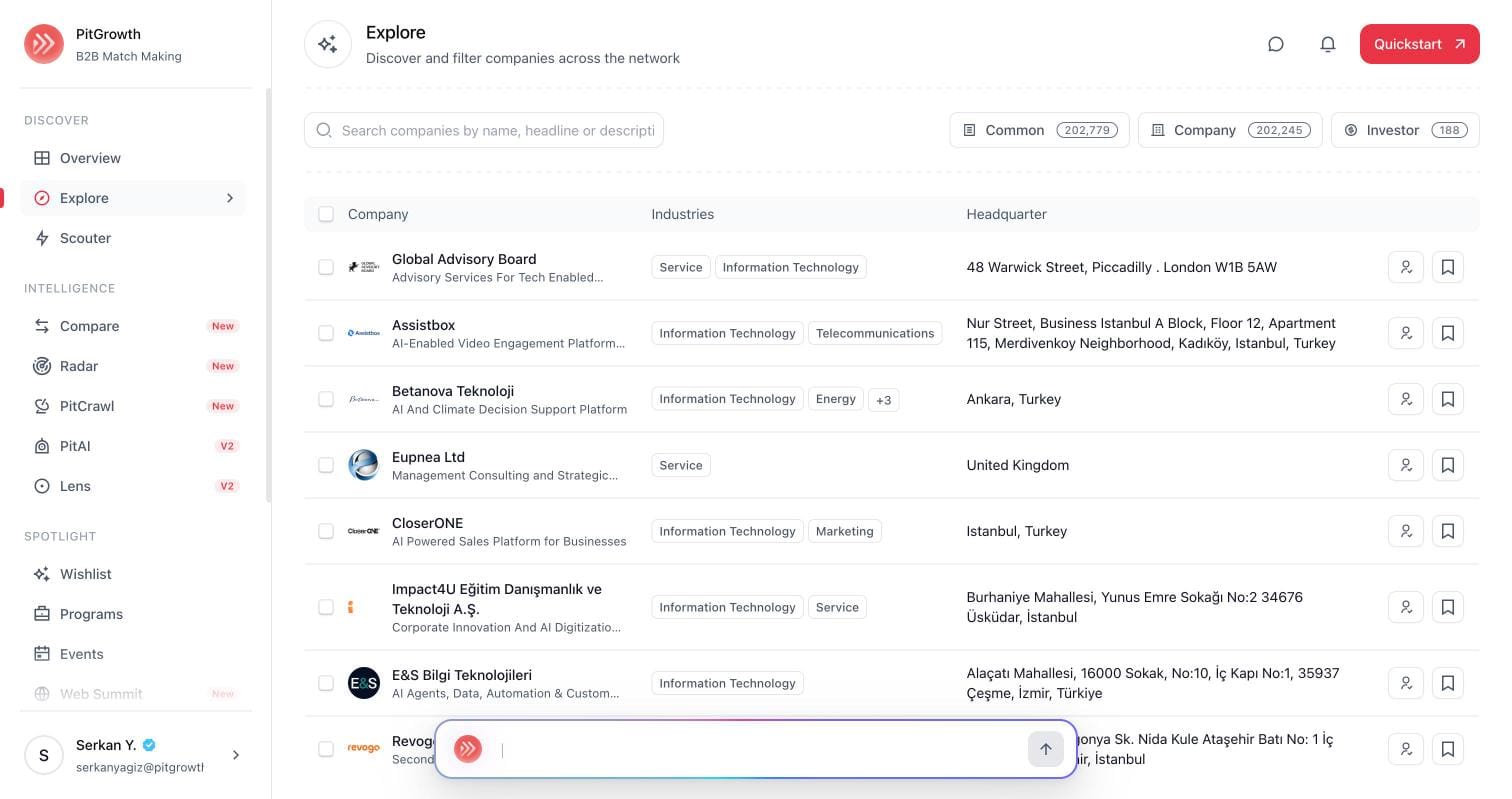
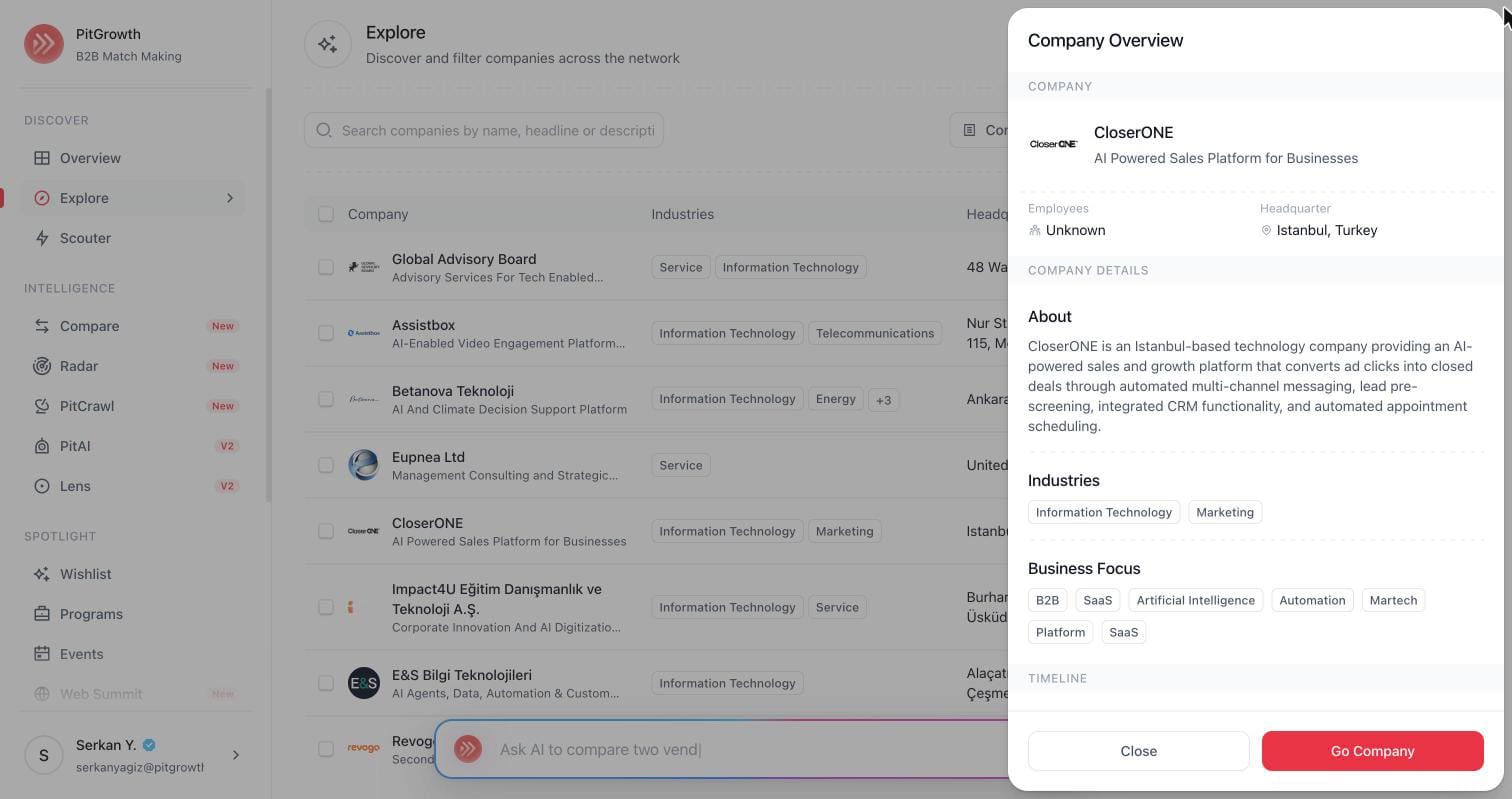
Open the sidebar and choose Explore under Discover. The page opens with every company in the directory, listed with its name, headline, industries and headquarters.
Two Ways to Search
Explore has a keyword search at the top of the page. For searches by meaning, use the Pit AI bar at the bottom of any page. Use the first when you know a name or a clear keyword. Use the second when you can describe what you need but don't know who offers it.
Keyword search in Explore
Type into the search box at the top. It matches company names, headlines and descriptions.
- Use short keywords. A search for "digital twin" returns hundreds of companies. A long phrase can return few results or none, because the words have to match.
- Search a company by its name to jump straight to it.
Semantic search with the Pit AI bar
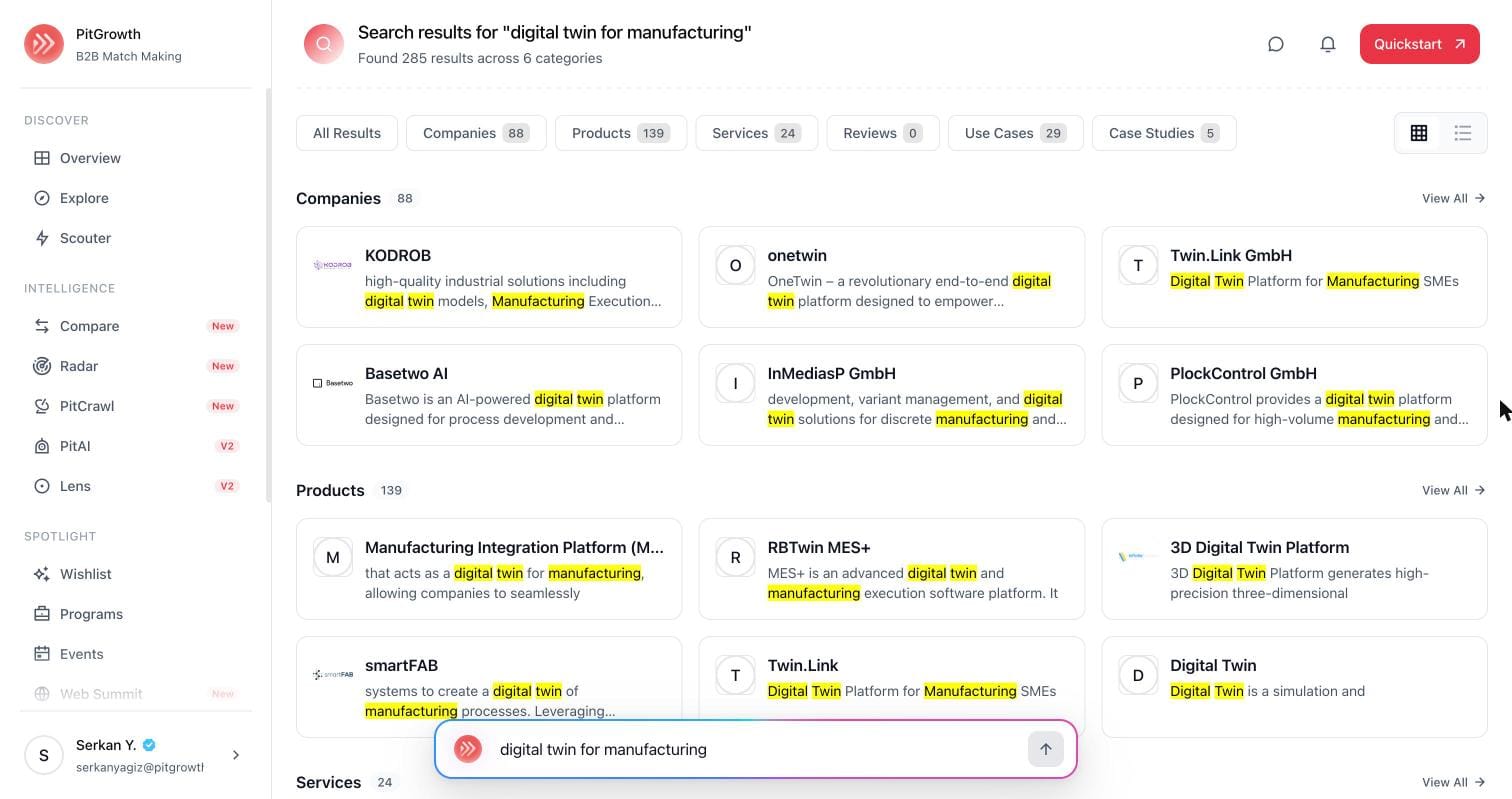
Click the Pit AI bar at the bottom of the page. Describe what you need in your own words, for example "digital twin for manufacturing", and press Enter. With the Semantic toggle on, PitGrowth searches by meaning, not only by matching words.
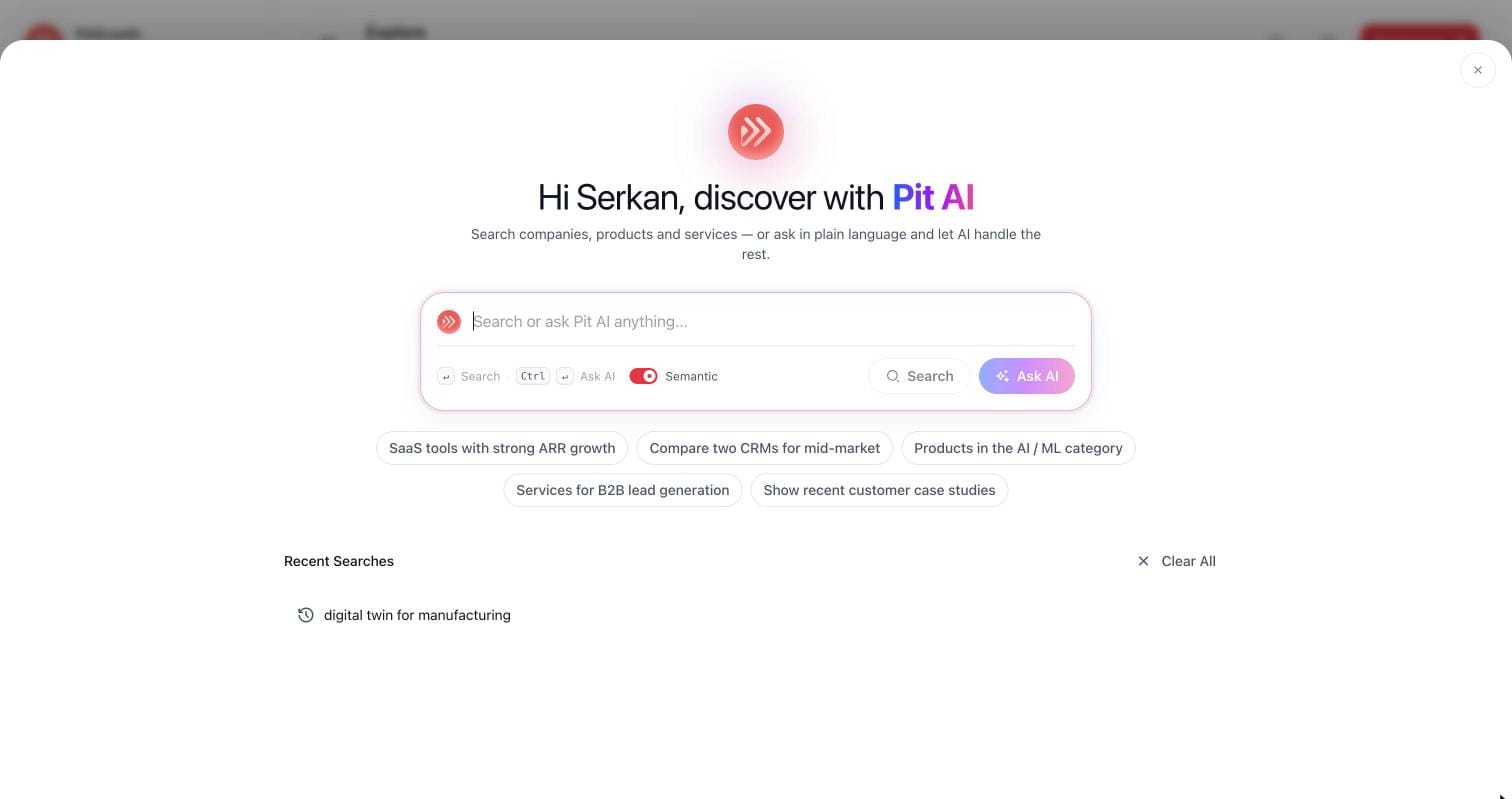
- One search, six result types. Results are grouped into Companies, Products, Services, Reviews, Use Cases and Case Studies, each with its own tab and count.
- Grid or list. Switch the view with the buttons at the top right of the results page.
- Suggestions and history. The bar offers ready-made searches to start from, and Recent Searches keeps your last queries.
- Need an answer, not a list? Press Ctrl + Enter to send the same text to Pit AI as a question.
Narrow the List with Filters
Three buttons next to the search box open the filter panels: Common, Company and Investor. Each button shows how many companies it covers.
Common filters
- Company type: hybrid, corporate, investor or tech hub
- Founding year and number of employees
- Active companies only
- Country, and the countries a company serves
- Company purpose, such as seeking investment, finding strategic partners, acquiring customers or exploring technologies
- Business model: B2B, B2C, B2B2C, C2C, B2C2B, marketplace or SaaS
- Whether the company has a reference
Company filters
- Women-founded companies
- Industry and sub-industry
- Solution areas and customer segment
- Target industry and target customer brands
- Tags
- Tech stack: list companies that use any or all of the technologies you pick
Investor filters
- Investor type: angel, venture capital, corporate VC, family office, accelerator, private equity, government or crowdfunding
- Industry
- Investment range in US dollars
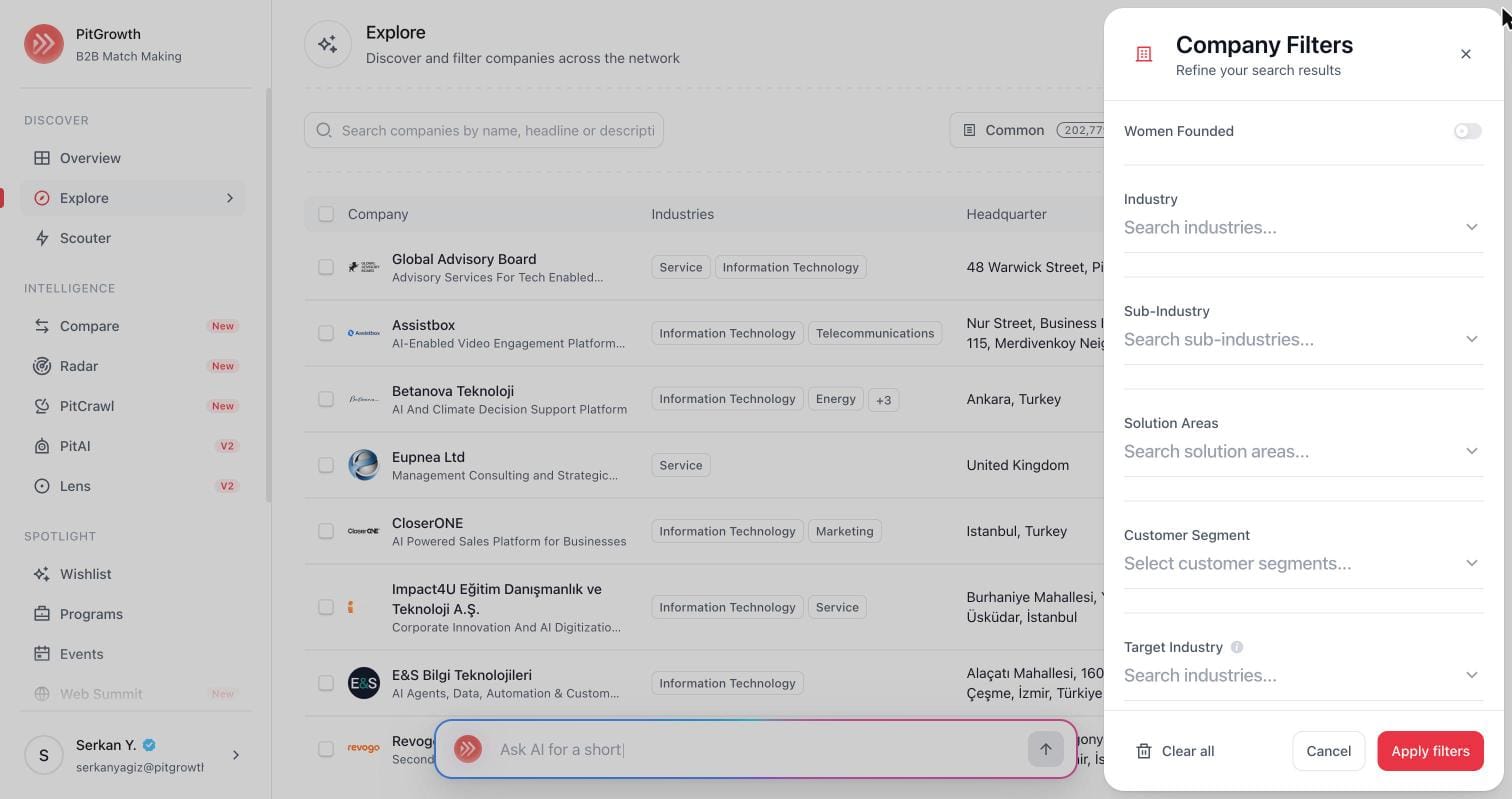
Click Apply filters to update the list. Your active filters appear above the results, and Clear all resets them. The search and filters are kept in the page link, so you can send a filtered list to a colleague.
Work with the Results
- Quick look: Click a row to open the Company Overview panel. It shows the company's headline, employees, headquarters, about text, industries and business focus. Choose Go Company to open the full profile.
- Export: Tick the boxes next to the companies you want and choose Export.
- Save for later: Use the bookmark icon at the end of a row to add the company to your Bookmarks.
- Compare: Put up to 3 companies side by side in Compare.
What You See on a Company Profile
A profile has six tabs: Overview, What we do, Trust, Activity, Team and Tech Stack. On Overview you find:
- About, and a Profile Summary written by Pit AI
- Services and products
- A pitch deck download and a demo link, where the company has added them
- Quick info: followers, employees and founding year
Use the share button at the top of a profile to send it to someone.
Tips
- Start broad with one keyword, then add filters one at a time.
- Looking for a proven supplier? Combine a target industry with "Has a reference".
- Looking for investors? Open the Investor panel and set the investment range.
- Not sure which words a company would use? Run a semantic search from the Pit AI bar first, then refine with Explore filters.
- Keep your own profile complete. It helps others understand what you do when they find you in Explore.
Frequently Asked Questions
Why does my search return no results?
The search box in Explore matches the words you type. Try a shorter keyword, or describe your need in the Pit AI bar and press Enter for a semantic search.
What is the difference between Search and Ask AI?
Search (Enter) returns lists of matching companies, products, services, use cases and case studies. Ask AI (Ctrl + Enter) opens a Pit AI chat that answers your question and explains its reasoning.
Can I share a filtered list?
Yes. Copy the page link. It keeps your search and filters.
How do I update my own company profile?
Open Go Profile in the sidebar and choose Edit profile.
Where can I learn the other tools?
Start with our Quickstart Guide, or read the Pit AI guide.
This post is part of our Platform Guide section, where you can find more posts like it.


Discussion