


Radar follows what companies in the tech market are doing, live. It reads companies' own public posts and turns them into signals: a new customer, a product launch, an investment, a call for solutions. Nearly 20,000 signals are in Radar so far, and more than a thousand new ones arrive every week. You see opportunities as they happen, instead of hearing about them later.
Where to Find Radar
Choose Radar under Intelligence in the sidebar. The top of the page shows how long ago the last signal arrived. Radar has five tabs: Today, Agenda, Following, Tasks and Categories.
Today: Your Daily Briefing
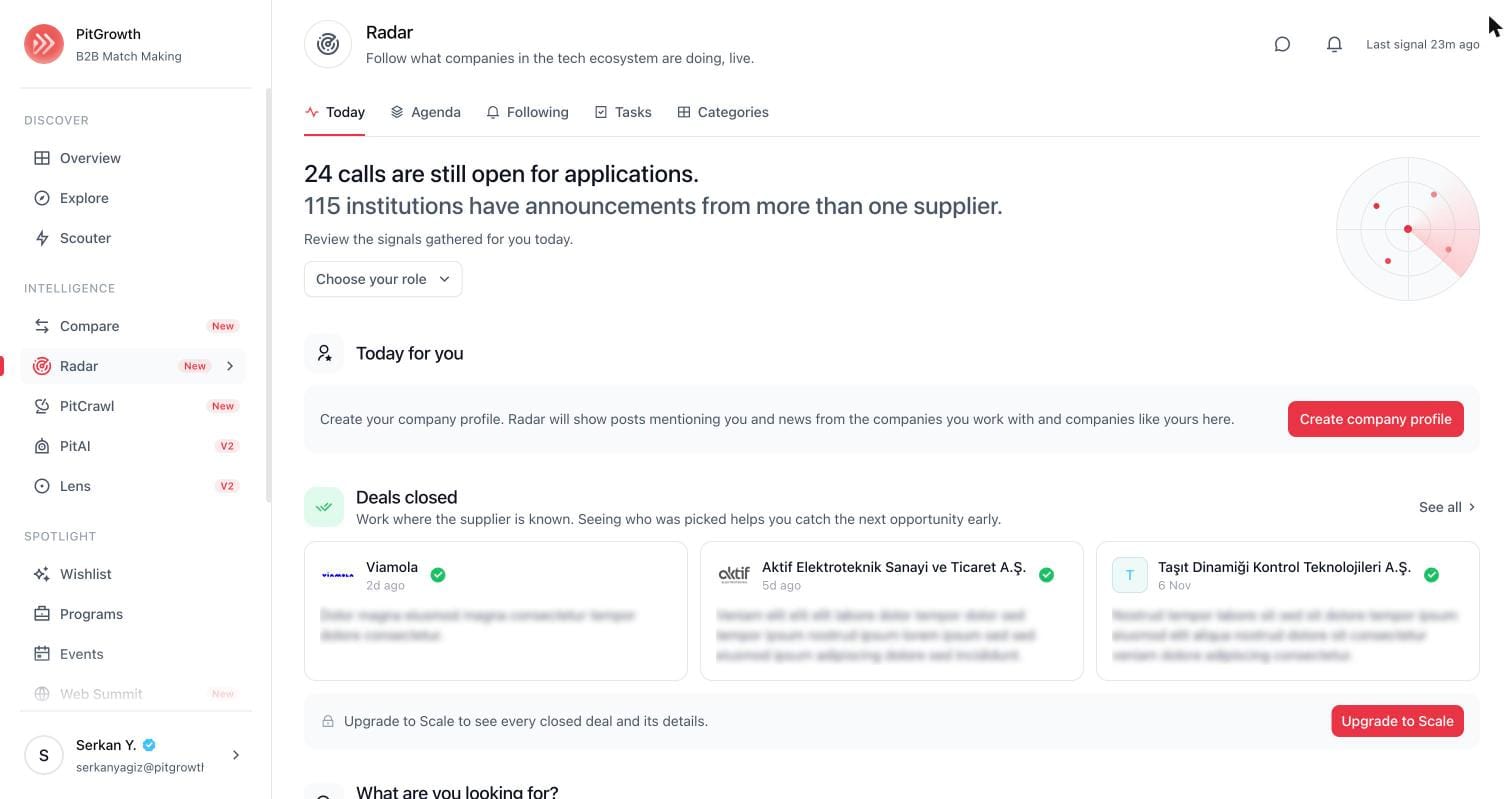
Today opens with a short summary of the day, such as how many calls are still open for applications and how many institutions have announcements from more than one supplier.
Choose your role
Pick your role from the menu at the top of Today. Each role puts different signals first:
- Technology company: See sales opportunities before anyone else. Follow institutions looking for solutions, setting budgets and opening calls.
- Corporate: Find the solution you need. Pick the right company from success stories and customer reviews.
- Investor: Follow growth figures. Catch companies growing with their customers and adding new ones early.
- Tech hub: Keep a pulse on your ecosystem. Discover companies launching new solutions and follow the ones that fit your program.
Your role hides no signal. It only changes what you see first.
Today for you
Today for you picks up to 20 entries a day from your company profile. Customer, investment and partner opportunities come first, and each entry explains why it matters to you. For example, a company similar to yours may have just won a customer, which makes that customer a good prospect for you too. Radar also shows posts that mention you, and news from the companies you work with and companies like yours.
- Approve an entry, add it to your tasks or hide it. Your choices shape the next day's picks.
- No company profile yet? Today for you shows a Create company profile button instead.
Deals closed
Deals closed lists work where the supplier is already known. Seeing who was picked helps you catch the next opportunity early. Radar shows a preview of the latest deals. Every closed deal and its details are on the Scale and Enterprise plans.
Browse, Search and Filter Every Signal
Further down Today, the What are you looking for? section opens every signal in Radar. Choose one of the five main categories, and its subcategories appear as chips with their counts. All categories opens the full map of 22 subcategories on one page.
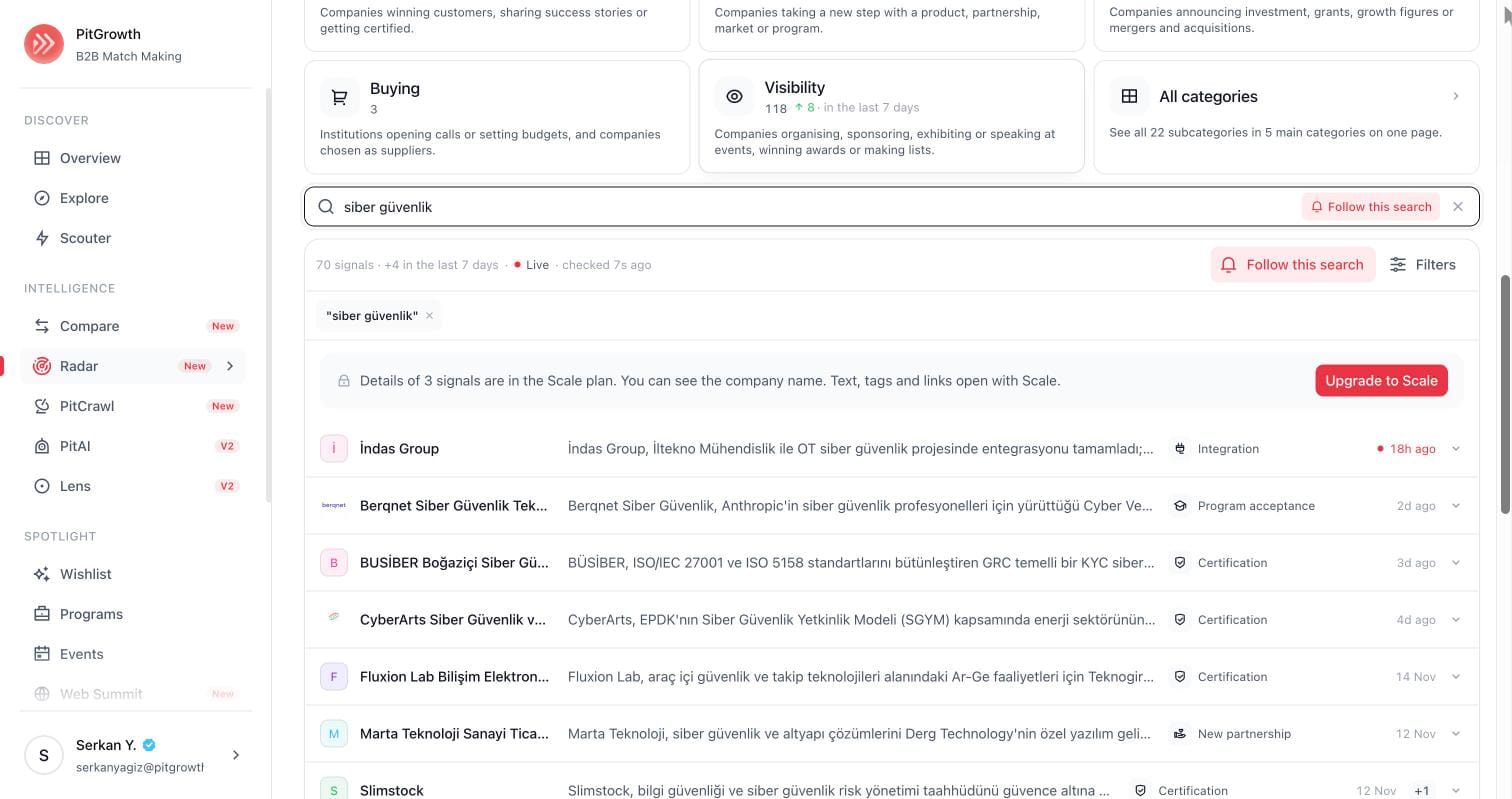
The bar above the signals shows how many signals the view has, how many arrived in the last 7 days and when Radar last checked. The list is live: when new signals come in while you are on the page, a bar at the top lets you show them.
Search
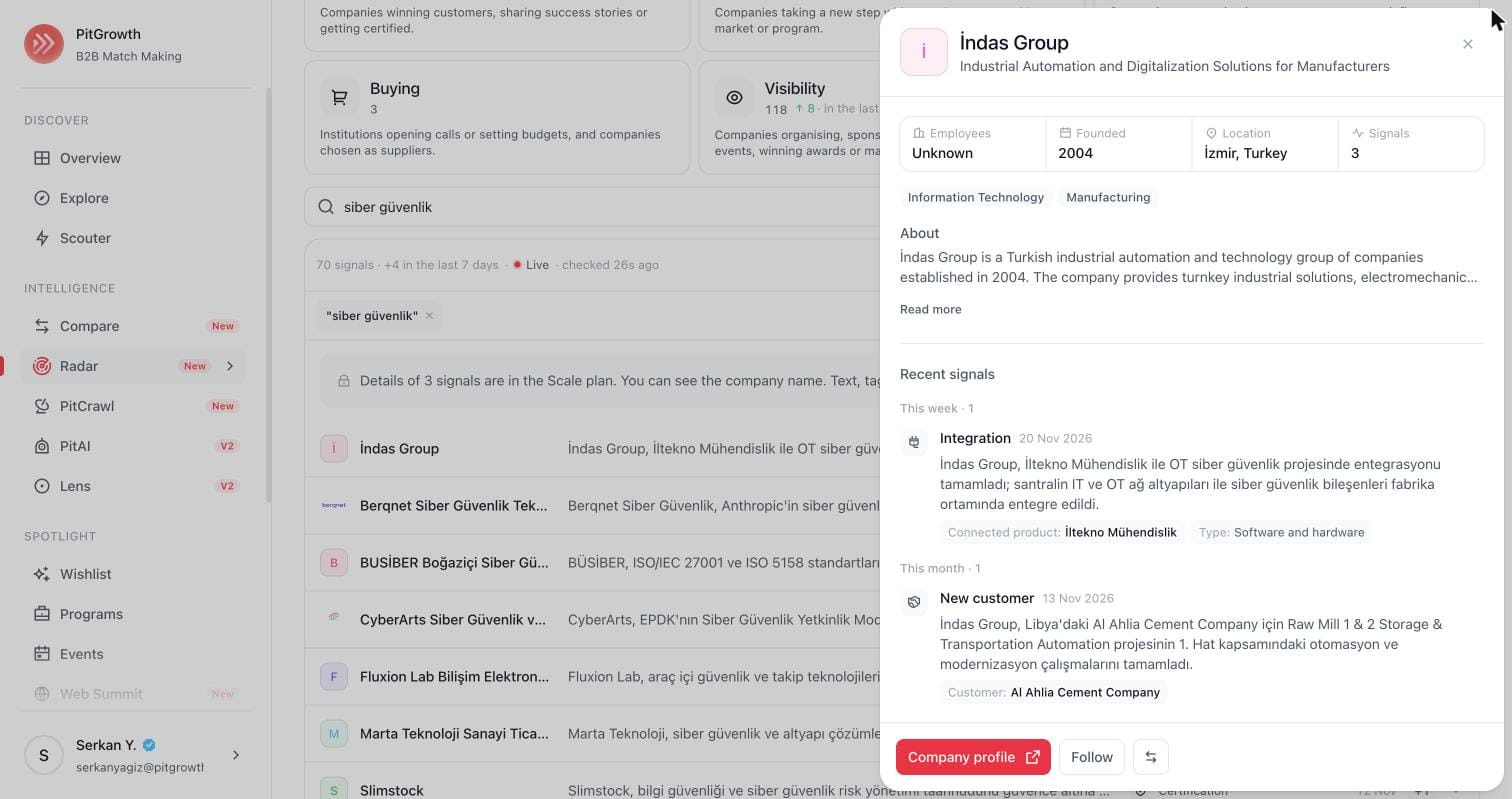
Search a company, an institution or a topic, such as cybersecurity ("siber güvenlik" in the example below). The category cards update to show how many matches each category has. Choose Follow this search to keep watching it. Your search stays in the page link, so you can share the view.
Filters
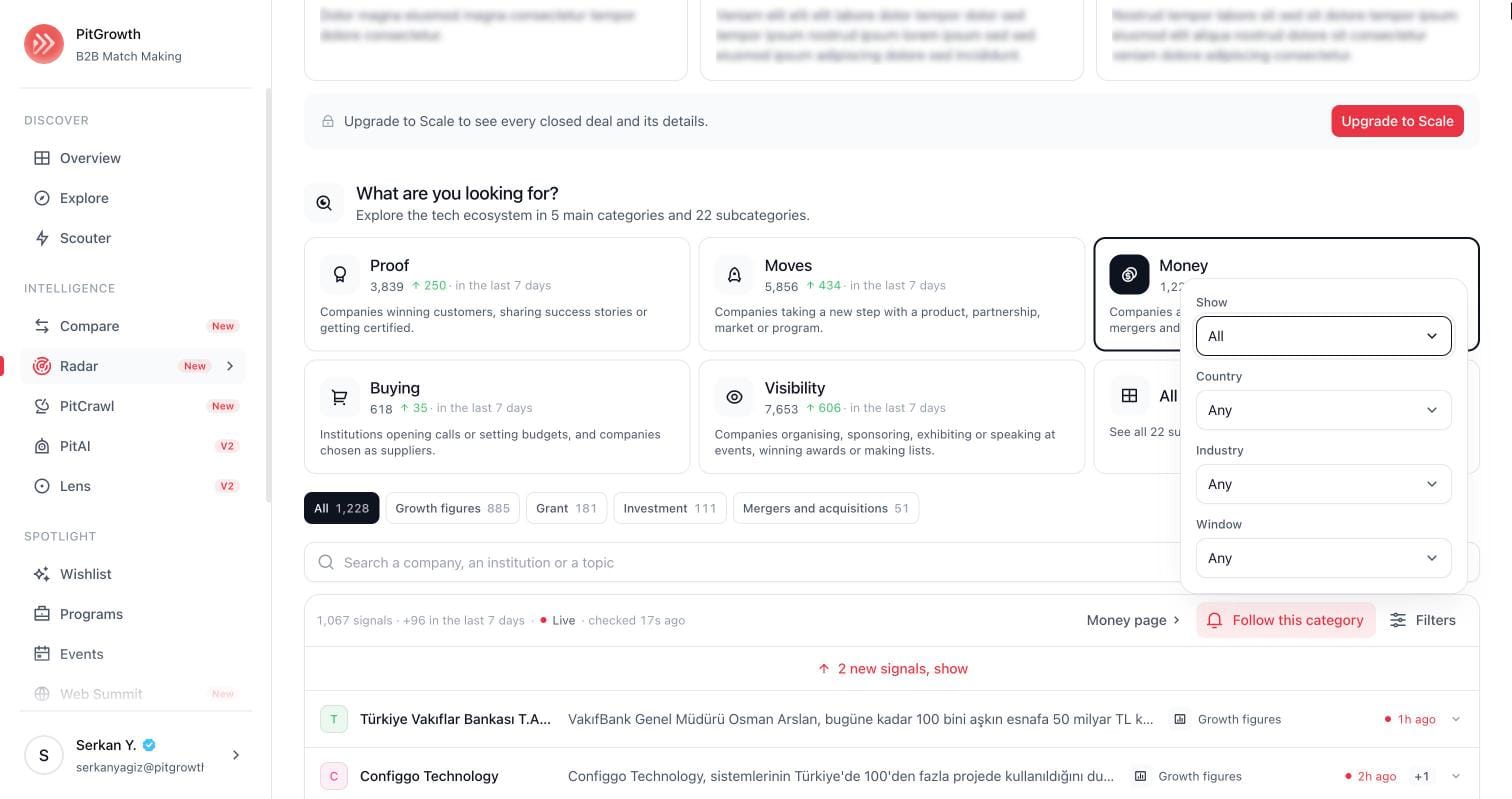
Filters narrows the list with four options:
- Show: all signals, or only the ones you follow.
- Country: where the company is based.
- Industry: the company's sector.
- Window: any time, the last 7 days or the last 30 days.
Open a signal
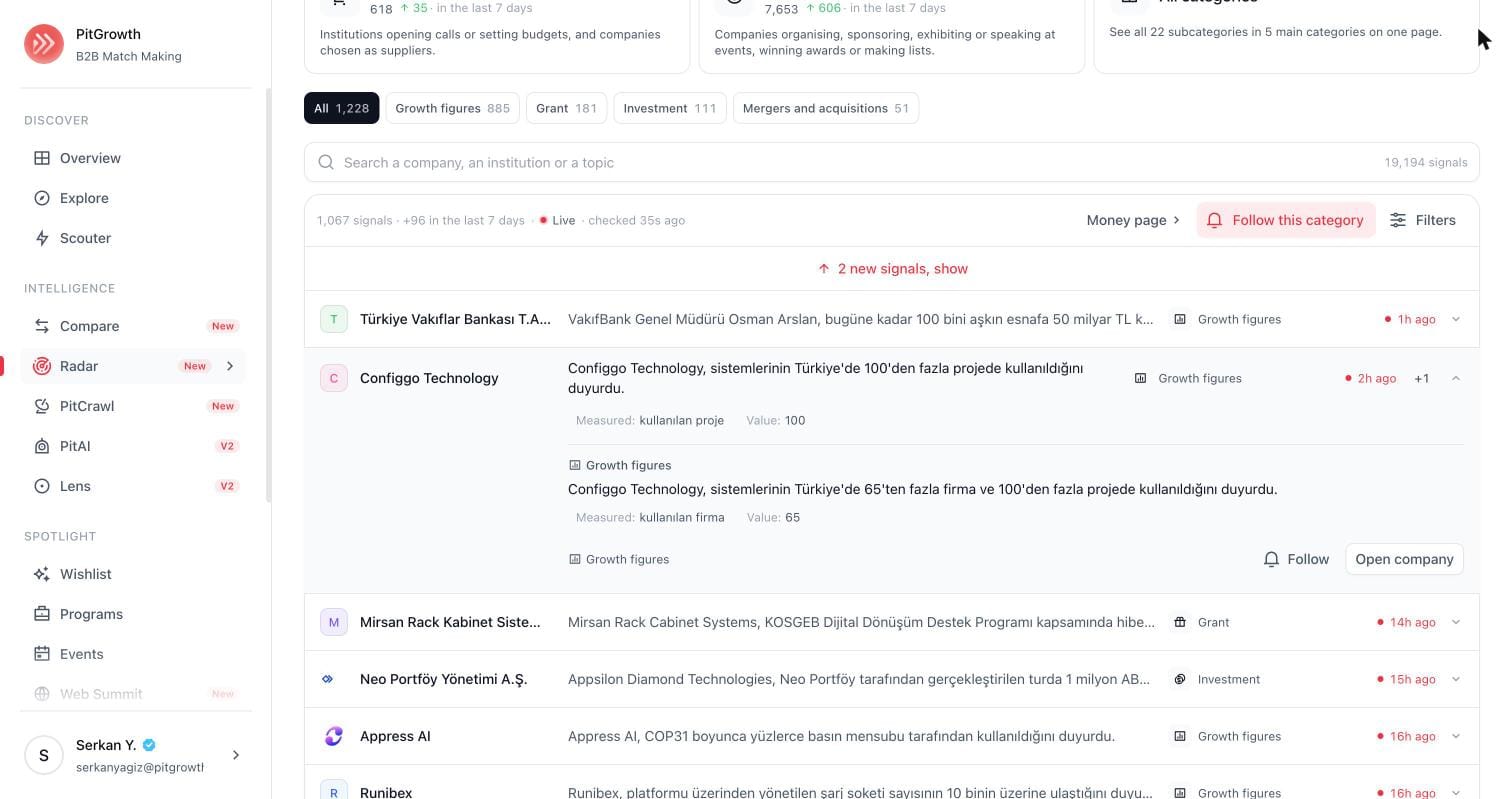
Click a signal to open it. Growth figures also show what was measured and its value. When a company has several related signals, a +1 or +2 badge groups them in one row. From an open signal you can follow the company or open its profile.
The company panel
Click a company name to open its panel without leaving Radar. The panel shows:
- Employees, founding year, location and how many signals the company has
- Its industries and About text
- Recent signals, grouped by this week and this month, with the customer, partner or product each one names
- Relationships: the customers and partners that appear in its signals
At the bottom, open the Company profile, Follow the company, or use the arrows button to add it to Compare.
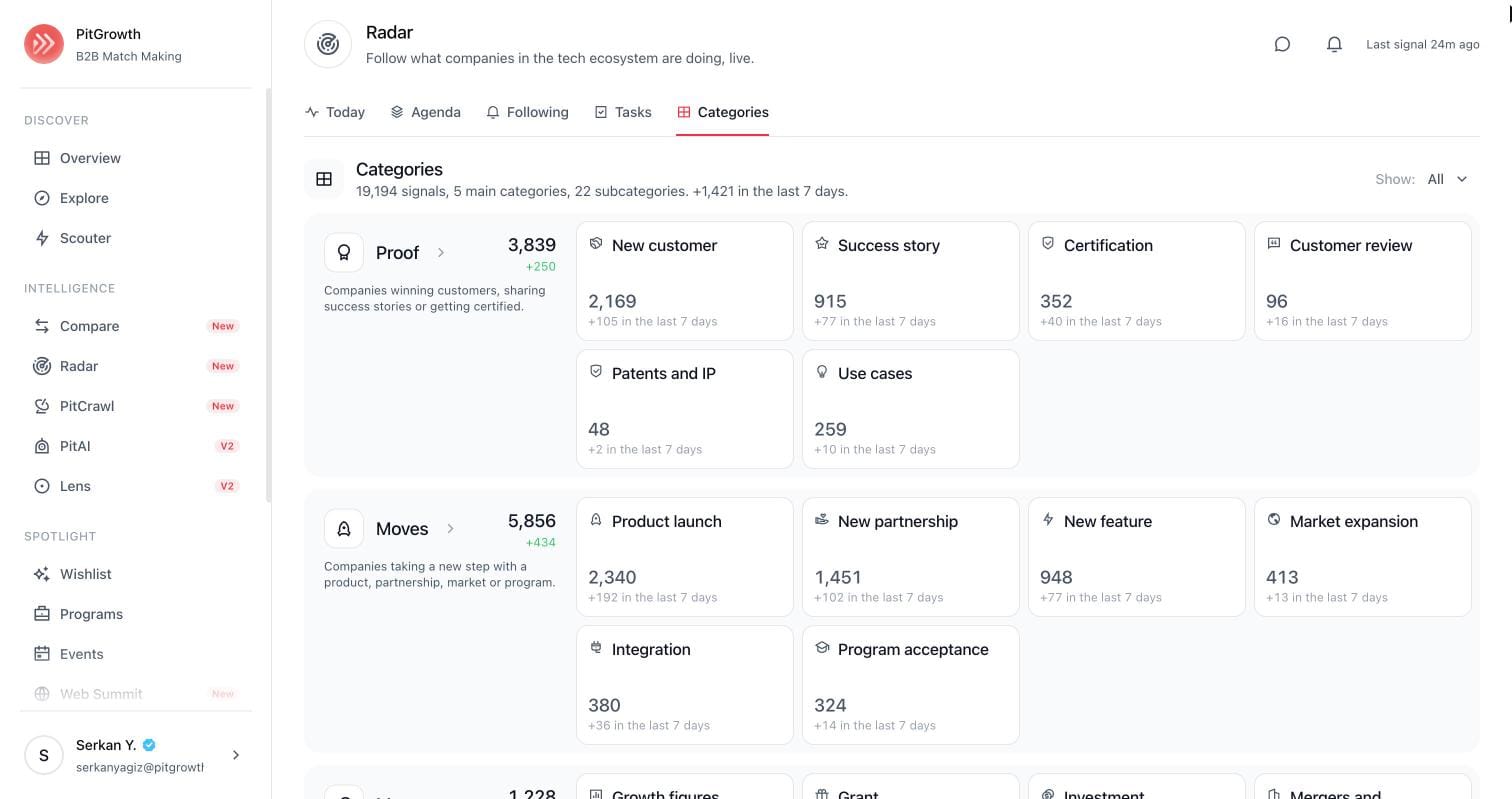
Categories: 5 Main Categories, 22 Subcategories
Every signal falls into one of five main categories:
- Proof: Companies winning customers, sharing success stories or getting certified. Subcategories: new customer, success story, certification, customer review, patents and IP, use cases.
- Moves: Companies taking a new step with a product, partnership, market or program. Subcategories: product launch, new partnership, new feature, market expansion, integration, program acceptance.
- Money: Companies announcing investment, grants, growth figures or mergers and acquisitions. Subcategories: growth figures, grant, investment, mergers and acquisitions.
- Buying: Institutions opening calls or setting budgets, and companies chosen as suppliers. Subcategories: program call, new supplier, budget announcement, solution search.
- Visibility: Companies organising, sponsoring, exhibiting or speaking at events, winning awards or making lists. Subcategories: event, awards and lists.
The Categories tab shows how many signals each subcategory holds and how many arrived in the last 7 days.
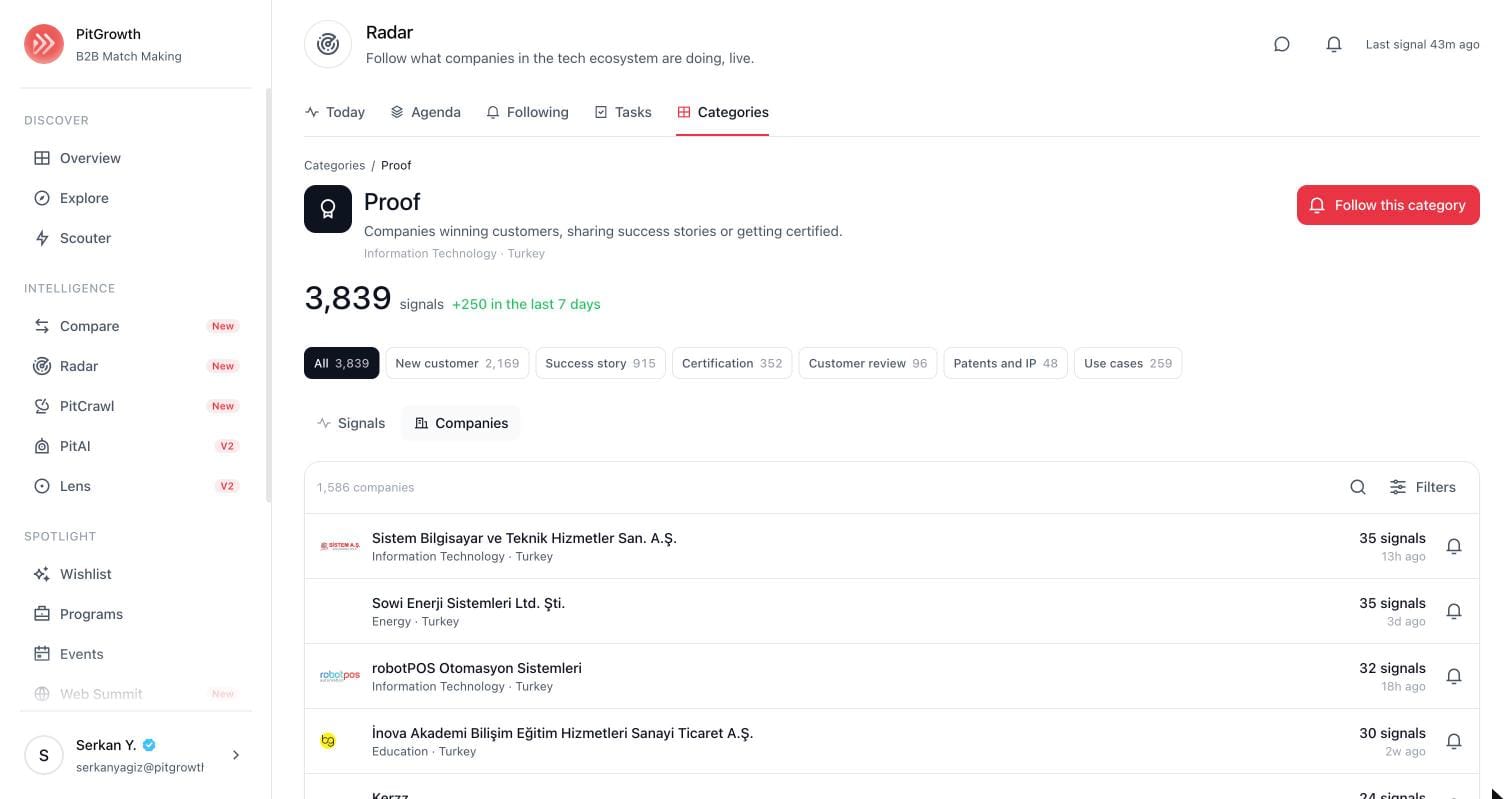
Open a main category to see its own page: the total number of signals, the new ones of the last 7 days, the subcategory chips and two views.
- Signals: every signal in the category, with search and filters.
- Companies: the companies with the most signals in the category, with their industry, country and latest signal. Use the bell to follow a company.
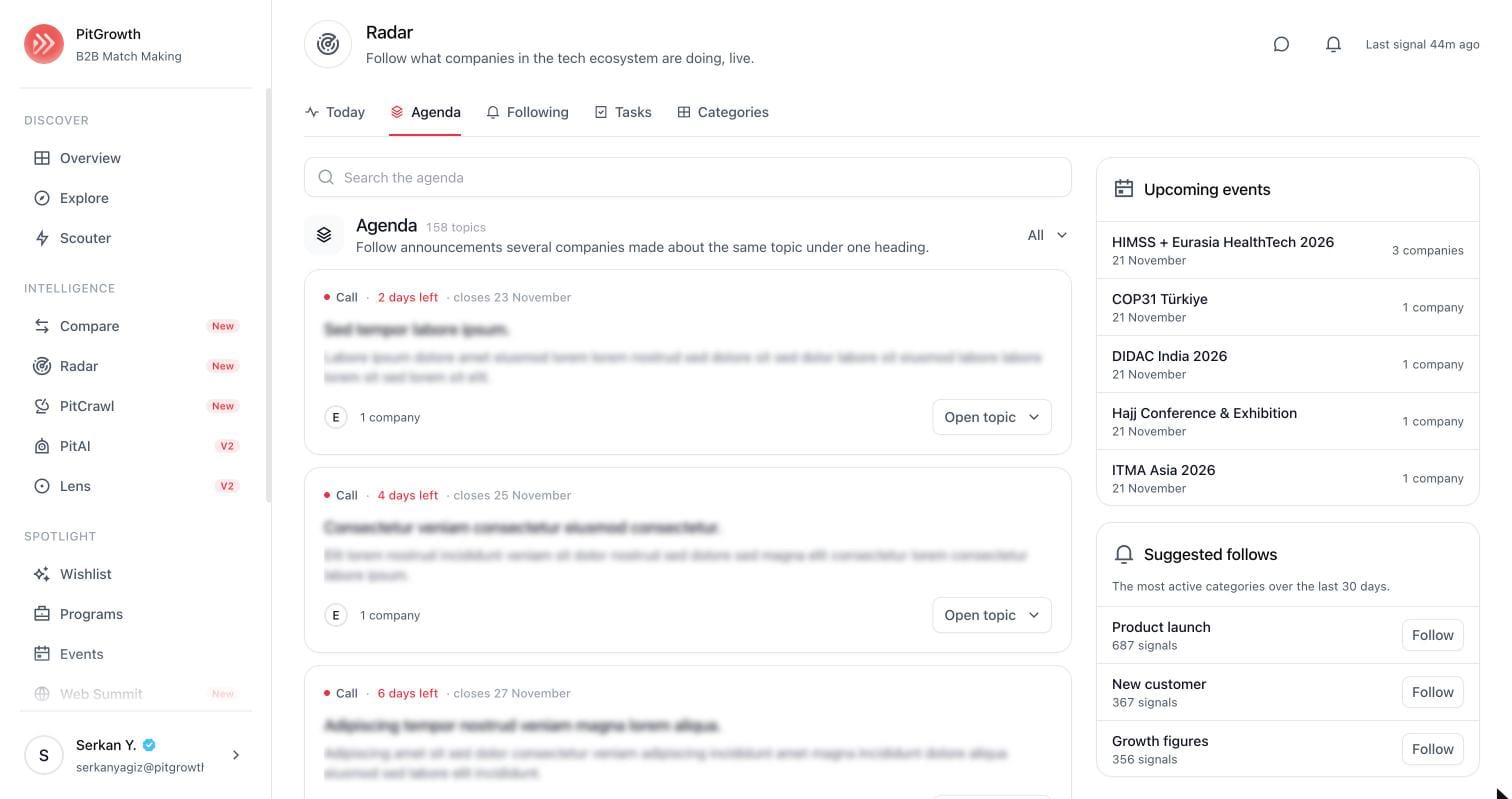
Agenda: One Topic, Many Companies
When several companies announce something about the same topic, Agenda groups those announcements under one heading. Each topic shows its type and how many companies took part. Calls also show how many days are left and when they close.
- Topic type: show all topics, or only Calls, Institutions, Awards, Events or Programs.
- Search the agenda for an institution or a subject.
- Upcoming events: the events coming up and how many companies are involved in each.
- Suggested follows: the most active categories of the last 30 days, one click away.
Following: Your Watchlist and the Weekly Radar Email
Following collects the new signals of everything you follow. You can follow four kinds of things:
- Main categories and subcategories: choose Follow this category on a category page.
- Searches: search on the Today page and choose Follow this search.
- Companies: choose Follow in a company's panel or on a signal.
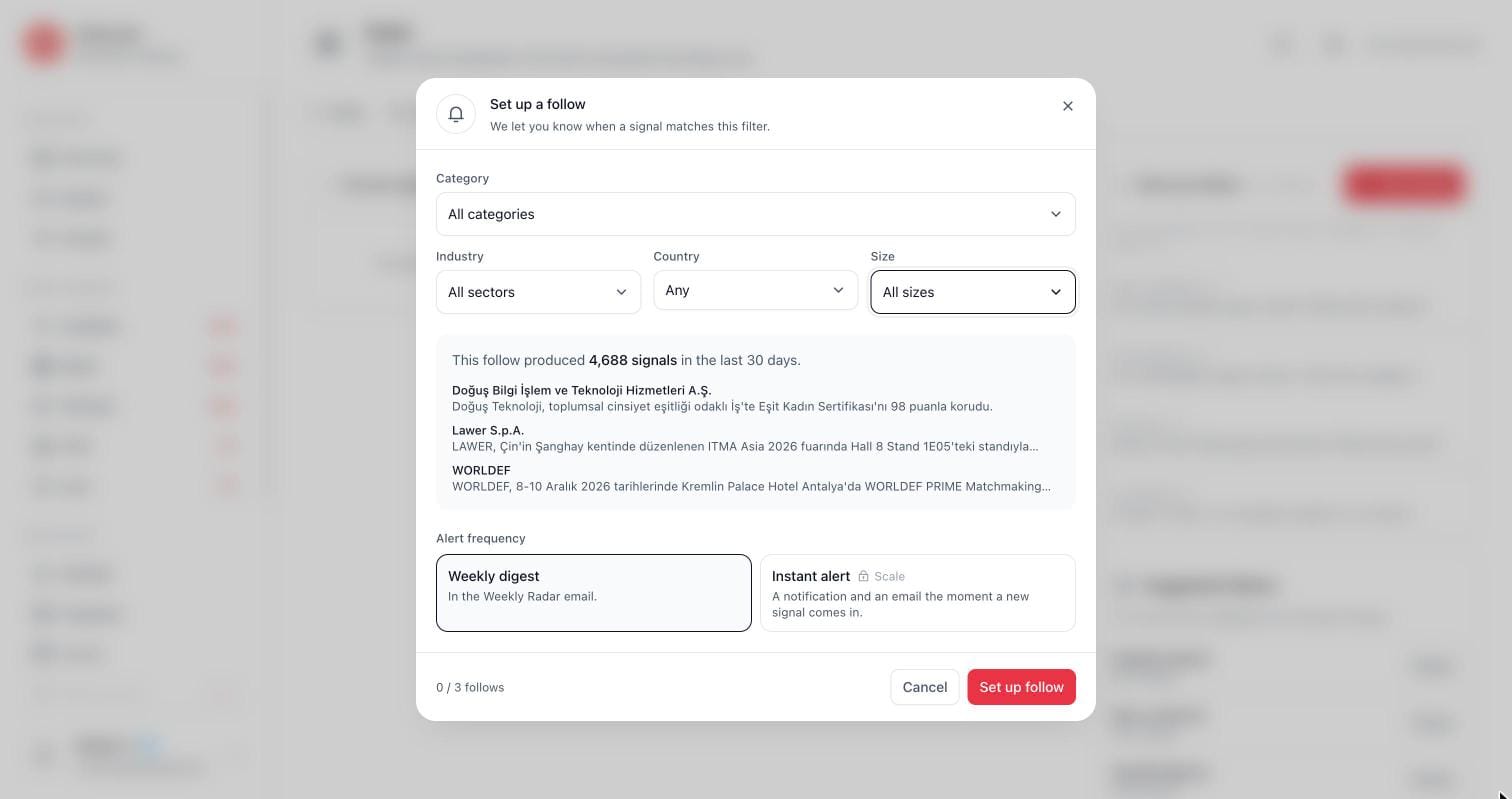
New follow opens Set up a follow. Pick a category, then narrow it by industry, country and company size: 1-50, 51-500 or 500+ people. Before you save, Radar shows how many signals this follow produced in the last 30 days, with a few examples.
Alert frequency
- Weekly digest: matching signals arrive in the Weekly Radar email.
- Instant alert: a notification and an email the moment a new signal comes in. Instant alerts are on the Scale and Enterprise plans.
Tasks
Tasks holds the work you add from Today for you: talking to a company, applying to a call or finding a partner. Entries wait here until you act on them. Because they come from Today for you, Tasks also needs a company profile.
Radar on Company Profiles
Developments from a company's own posts also appear on its profile, in a section separate from the timeline the company writes itself. Every entry links back to the source post, and the company's team decides what stays.
What Your Plan Includes
Full access to Radar comes with the Scale and Enterprise plans.
- Free, Start and Growth: Radar works with limits. For example, lists show the first 20 records and the number of topic follows is limited. For Buying signals and some search results, you see the company name, while the text, tags and links open on Scale and Enterprise.
- Scale and Enterprise: Full lists, unlimited follows, instant alerts, every closed deal with its details, and the full text of every signal.
For Enterprise, contact our team.
Ready-Made Ways to Use Radar
- Technology companies: Follow Buying, narrowed to your country, to catch program calls and solution searches early. Check Deals closed to see who wins work in your field.
- Corporates: Search the problem you need solved, then look at Proof signals such as new customers, success stories and customer reviews to shortlist proven companies.
- Investors: Open Money, set Window to the last 30 days, and check growth figures and investments. Use company panels to see each company's customers and partners.
- Tech hubs: Follow program acceptance and product launch, and use the Companies view to find the most active companies in your sector.
Frequently Asked Questions
Where do Radar signals come from?
From what companies post themselves. That is why not every topic shows up every week.
How fresh is the data?
Radar is updated continuously. The top of the page shows how long ago the last signal arrived, and lists marked Live update while you watch.
Does my role hide any signals?
No. Your role only changes what you see first.
How do I get Radar updates by email?
Set up a follow and choose Weekly digest. Matching signals arrive in the Weekly Radar email. On Scale and Enterprise, choose Instant alert to get a notification and an email as soon as a signal comes in.
Why does Today ask me to create a company profile?
Today for you is picked from your company profile. Once you create it, Radar starts showing posts that mention you and news about companies like yours.
Can I change what appears in Today?
Yes. Approve, add to tasks or hide entries, and choose your role. Your choices shape the next day's picks.
This post is part of our Platform Guide section, where you can find more posts like it.


Discussion